How to Verify End-Users Using MS Authenticator in Kaseya (Datto) Autotask
Last updated: July 12, 2026
As part of recent product enhancements, CyberQP supports verifying end-users using Microsoft Authenticator when working within Kaseya (Datto) Autotask. This allows technicians to securely confirm a user's identity before performing sensitive actions such as password resets or account changes.
This article explains how technicians can verify an end-user using Microsoft Authenticator directly from Kaseya (Datto) Autotask.
Note: All PSA platforms are supported.
Pre-requisites
Before attempting verification, ensure the following requirements are met:
The end-user must have their Microsoft 365 account registered with the Microsoft Authenticator app on their phone.
The end-user’s phone must be connected to the Internet.
The End User Account imported into the CyberQP Dashboard must be sourced from Microsoft 365, or from Active Directory with M365 Password Sync Enabled.
Steps to Verify User Identity via Microsoft Authenticator in Kaseya (Datto) Autotask
Step 1 – Open the ticket in Autotask
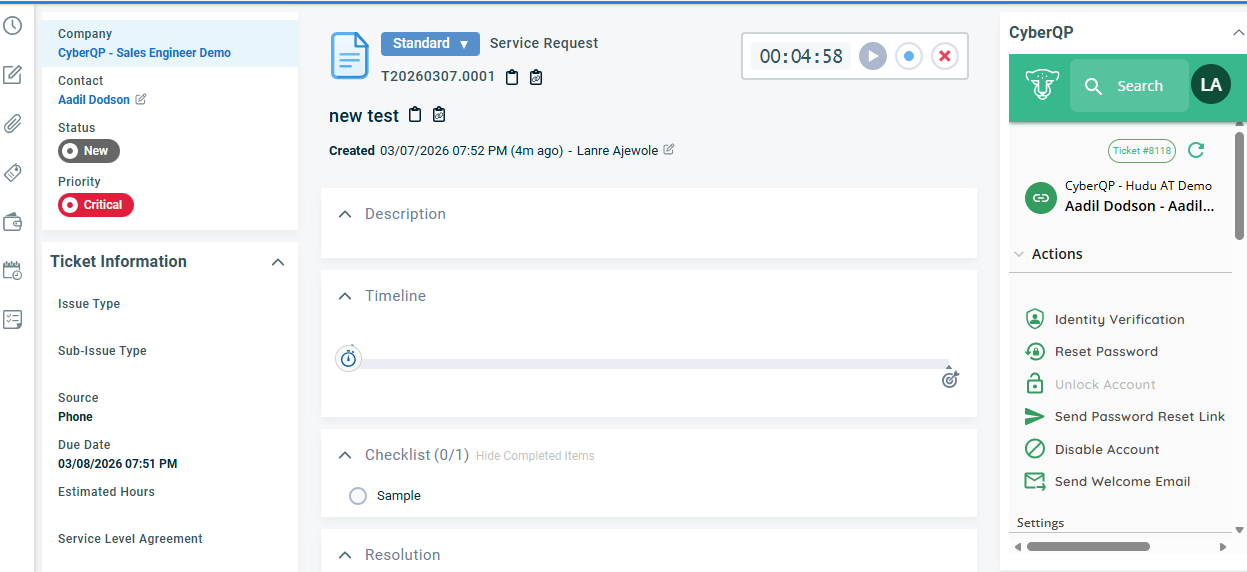
Navigate to the Autotask ticket associated with the end-user you need to verify. The CyberQP insights should also show within the Autotask ticket
Step 2 – Select Identity Verification in the CyberQP Insights
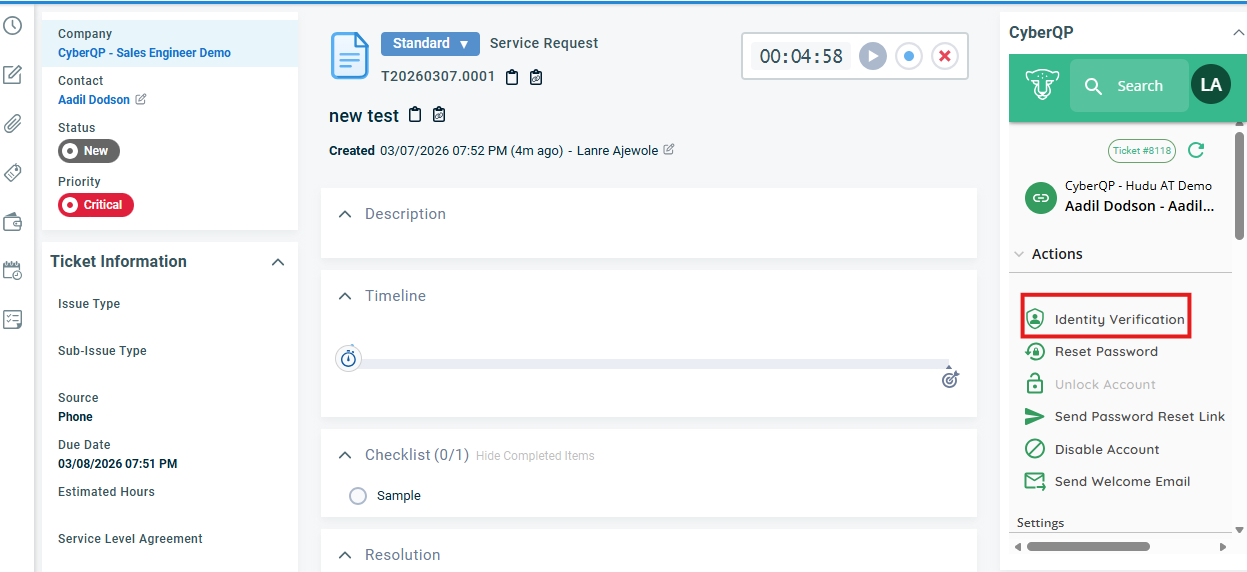
Within the Autotask interface with the CyberQP insights, click on Identity Verification as seen below
This option allows technicians to initiate identity verification before performing secure actions.
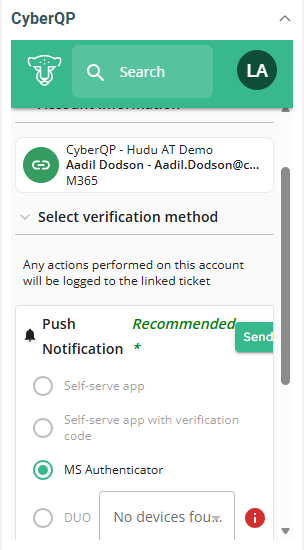
On the next page, the MS Authenticator should already be selected as seen below and then you can hit send
Step 3 – End-User Approves the Authenticator Prompt
The end-user will receive a Microsoft Authenticator approval request on their phone.
Ask the user to:
Open the Microsoft Authenticator app
Locate the verification request
-
Tap Approve
Step 4 – Verification Confirmation
Once the user approves the request, then a success modal appears on the UI
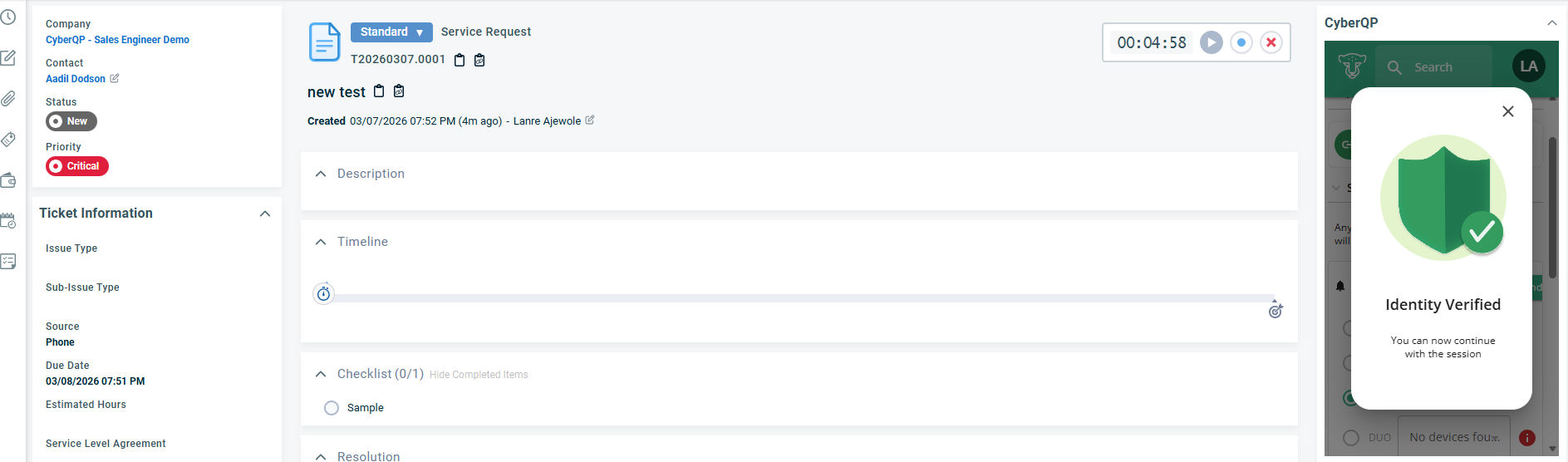
The technician can now proceed with the requested support action.
Result
After successful verification:
The user’s identity is securely verified using Microsoft Authenticator
The technician can proceed with sensitive support actions
The process ensures security and compliance during support interactions
✅ Tip: Always verify the end-user before performing security-sensitive actions such as password resets, MFA changes, or account unlocks.