Just-In-Time (JIT) - Single Use and TAP Access
Last updated: July 12, 2026
Intro
Just-In-Time (JIT) privileged accounts provide an added layer of security by restricting access to critical resources only when necessary. CyberQP enables you to configure JIT accounts, ensuring that your organization can better manage and control privileged access. This article explains how to setup Just in Time Access for your Technicians to use a "Single Use" (Burner) account that will be fully removed from the source when no longer in use. In addition, we explain how to enable the TAP access method for logging into Azure/Entra/M365 resources.
Prerequisites
- You need to have Primary or Super Role
- You must have an active QGuard subscription
Just-In-Time (JIT) Account Policies control how temporary privileged accounts are created, secured, and expired within CyberQP. Policies allow administrators to define who can create JIT accounts, where those accounts are created, how long they remain active, and how they behave after expiration.
JIT policies can be configured separately for:
Local accounts
Active Directory accounts
Microsoft 365 accounts
This article walks through how to configure JIT account policies and explains how each setting affects account behavior.
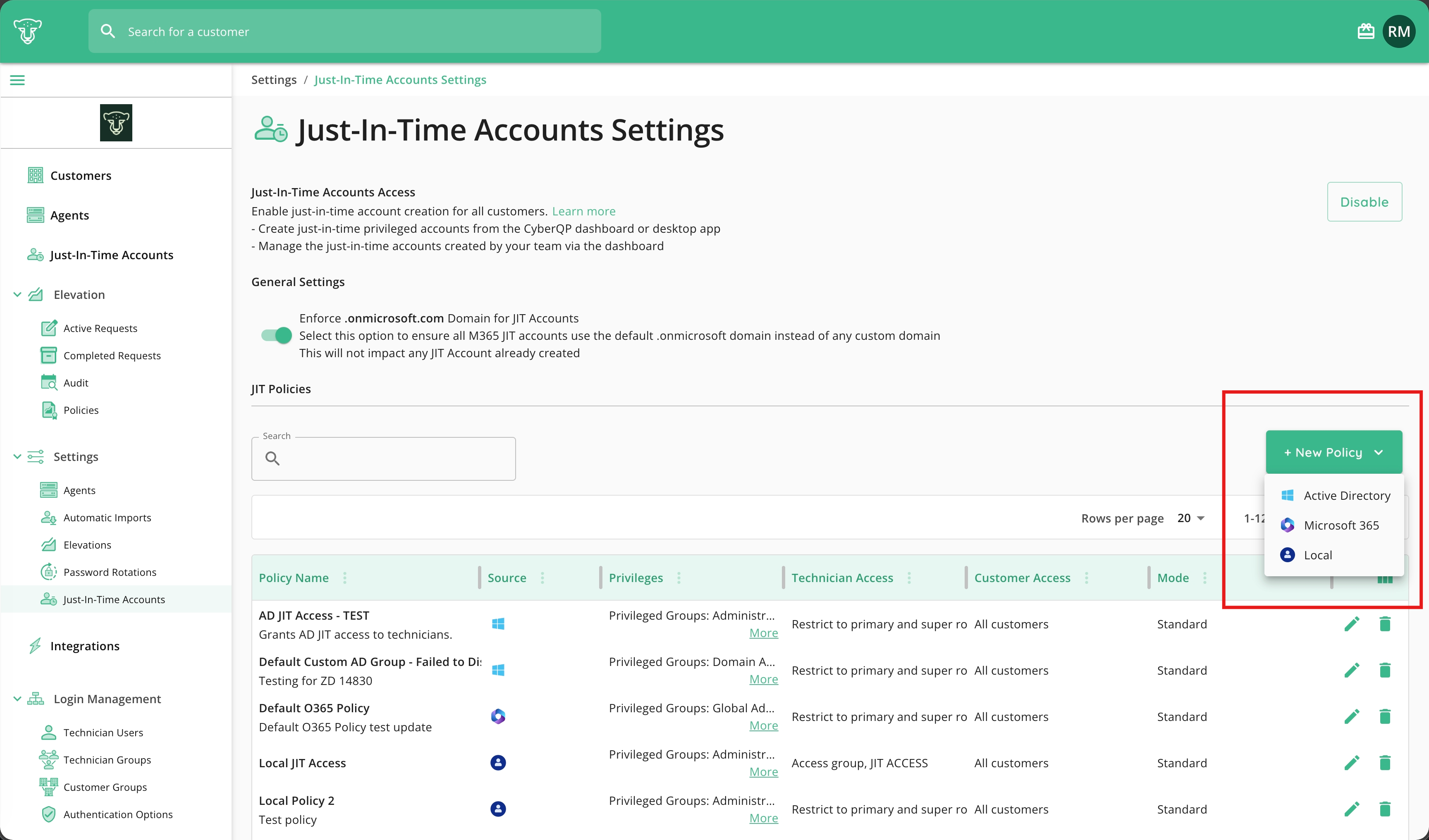
Step 1: Select the JIT Account Source
When creating a JIT policy, first select the account source the policy will manage.
Available account types include:
Local Accounts
Creates temporary privileged accounts directly on endpoints.
Active Directory Accounts
Creates temporary privileged accounts within the domain environment.
Microsoft 365 Accounts
Creates temporary privileged accounts in Microsoft Entra ID / Microsoft 365.
Step 2: Configure Basic Policy Information
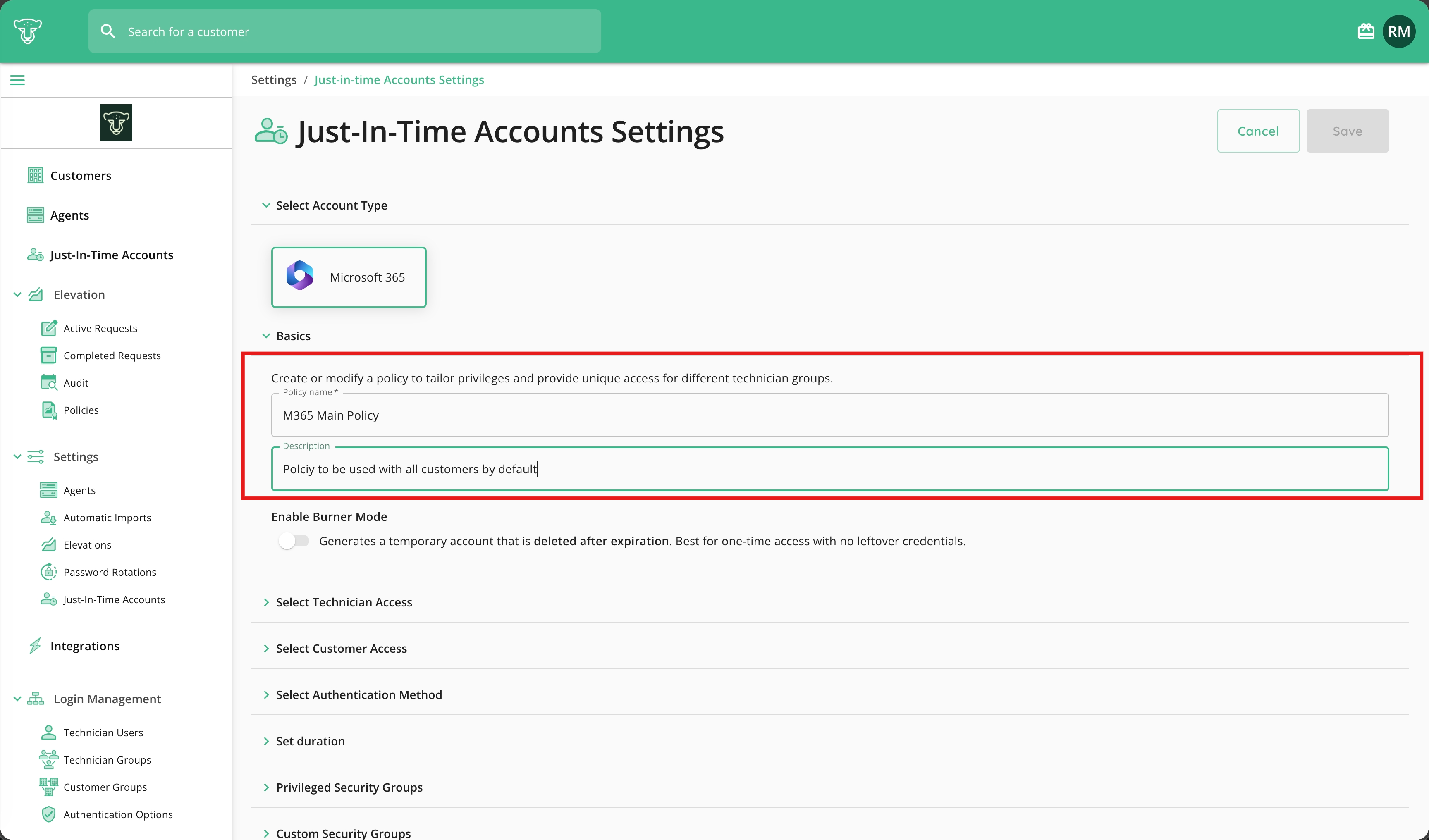
Enter the following required information:
Policy Name
Provide a descriptive name that identifies the intended use of the policy.
Description (Optional)
Add notes describing the policy purpose or intended audience.
Step 3: Configure Account Lifecycle Behavior
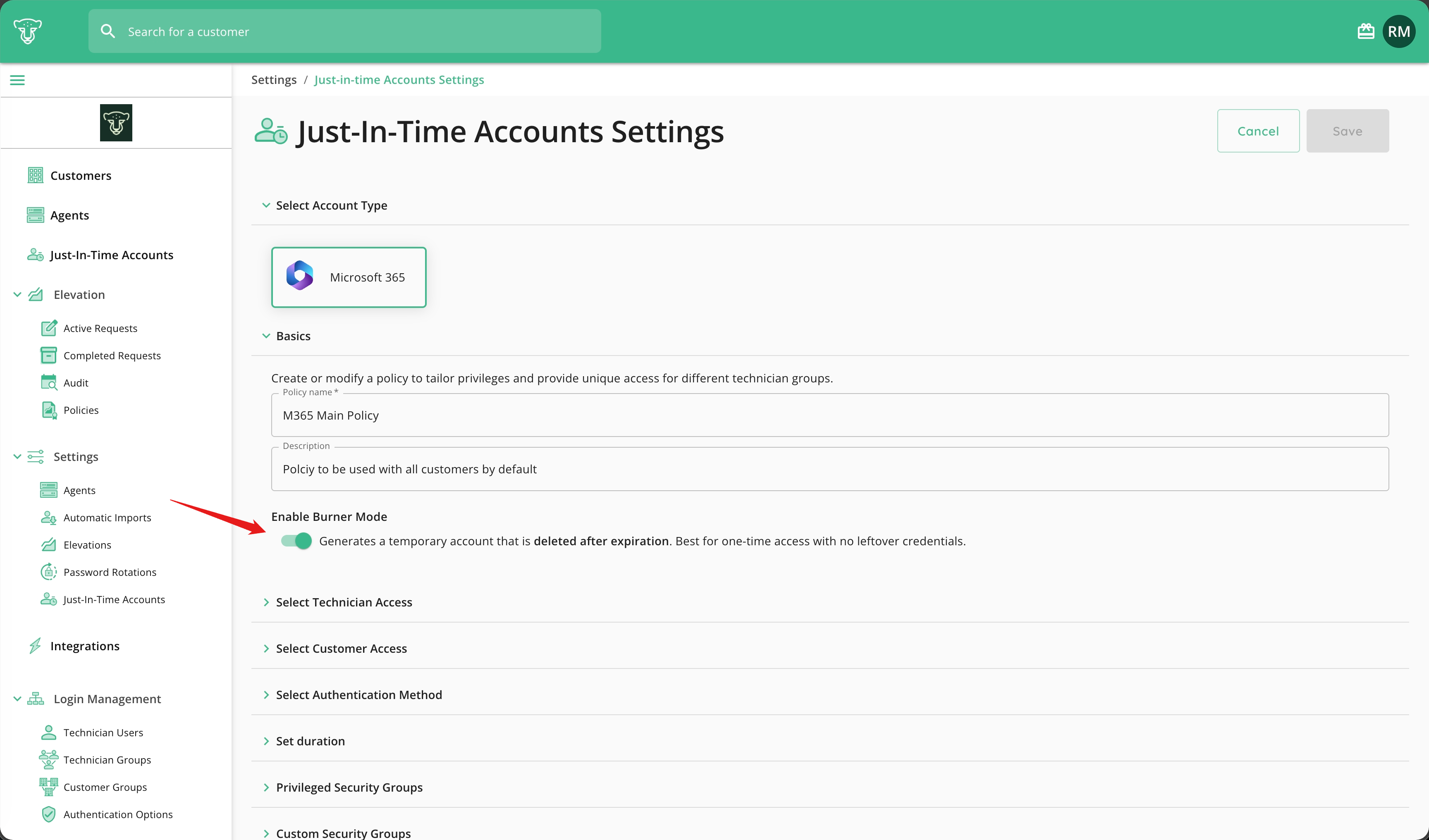
JIT policies control how accounts are handled after expiration through the Burner Mode setting.
Standard JIT Account Behavior (Default)
Leave Burner Mode disabled to create reusable JIT accounts.
When a Standard JIT account expires:
The account is disabled
The account is removed from privileged security groups
The password is rotated
The account remains available for re-enablement
Standard behavior is recommended when technicians require recurring privileged access.
Burner JIT Account Behavior (Limited BETA Access)
Enable Burner Mode to create temporary one-time-use accounts.
When Burner Mode is enabled:
The JIT account is automatically deleted at expiration
The account cannot be re-enabled
A new account must be created for future access
Burner Mode is recommended for highly sensitive environments or one-time administrative tasks.
Step 4: Configuring Access
Managing Technician Access
Define which technicians can create JIT accounts using this policy.
Options may include:
Restricting access to primary and super roles
-
Allowing specific technician groups
https://support.getquickpass.com/hc/en-us/articles/19154433432983-Configuring-CyberQP-Login-Groups- You may also create a separate policy to segment technicians with different privilege levels for the selected directory source.
Managing Customer Access
Select which customers or environments technicians can use this policy for.
Options include:
All customers a technician has access to
-
Restricting the policy to Specific Customer Group(s) (you must have the Customer Group created ahead of time)
- If the Customer where a Just in Time Policy is being Created or Re-enabled is selected, the Just in Time Policy will ONLY be available at that customer.
- Click the "Add/Edit Group" button
- Select (via checkbox) the Customer Groups that you DO want this Just in Time Policy to be visible for. If the Technician is on a Customer screen that is NOT part of this group, they will not be able to select this Just in Time Policy.
NOTE: Selected technicians will only gain access to create JIT accounts for customers they have access to. - Click Select once completed.
- The List of Customer Groups will be listed just below the Add/Edit Customer Group screen.
- If the Customer where a Just in Time Policy is being Created or Re-enabled is selected, the Just in Time Policy will ONLY be available at that customer.
Step 6: Configure Allowed Account Durations
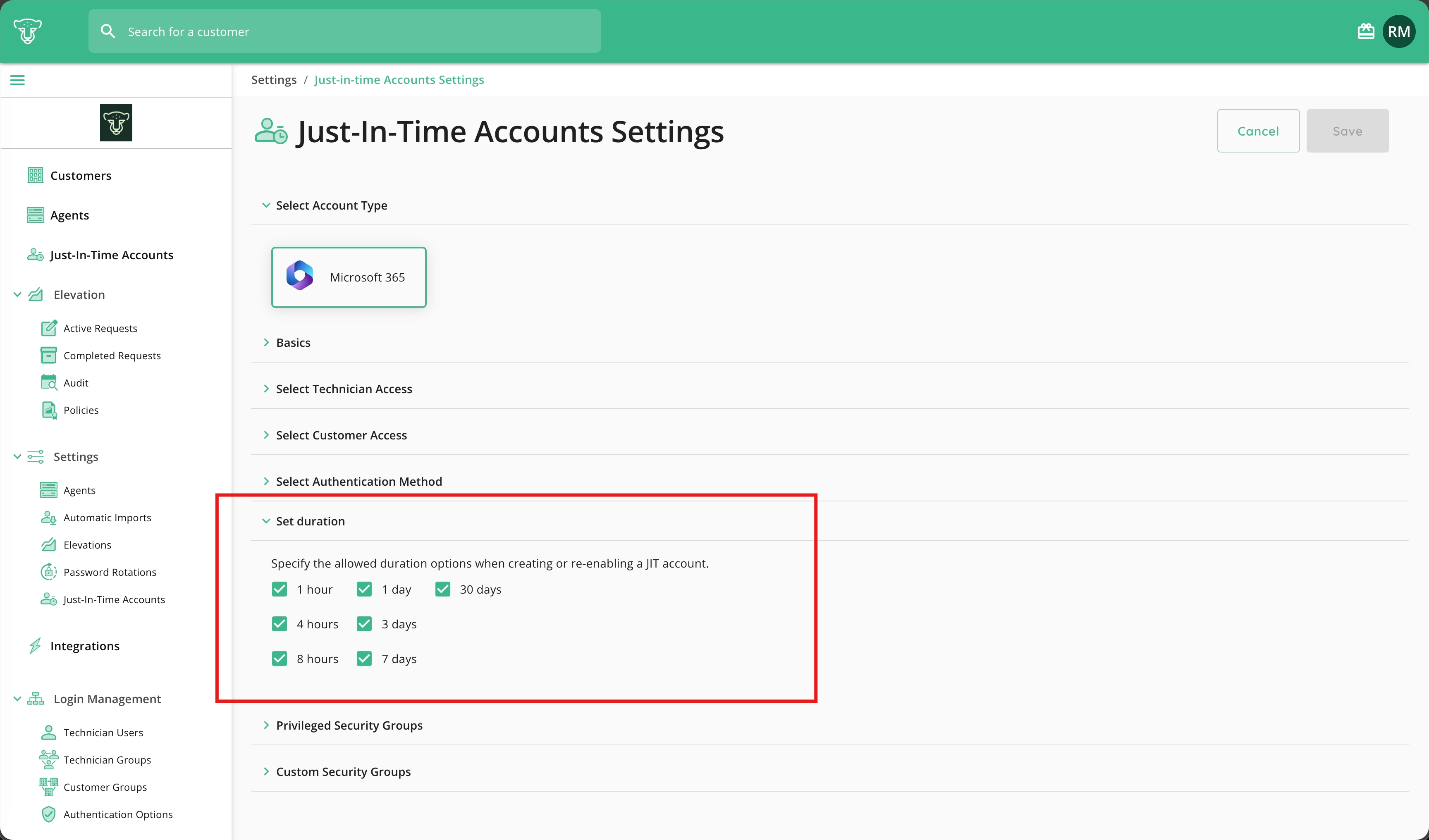
JIT policies control which expiration durations technicians can select when creating or enabling JIT accounts.
Administrators can enable or disable duration options such as:
1 hour
4 hours
8 hours
1 day
3 days
7 days
30 days
Expiration Behavior
When a JIT account reaches its expiration time:
Privileged access is removed
Account credentials are rotated
Additional lifecycle actions occur based on Burner Mode configuration
Step 7: Configure Privileged Access Assignments
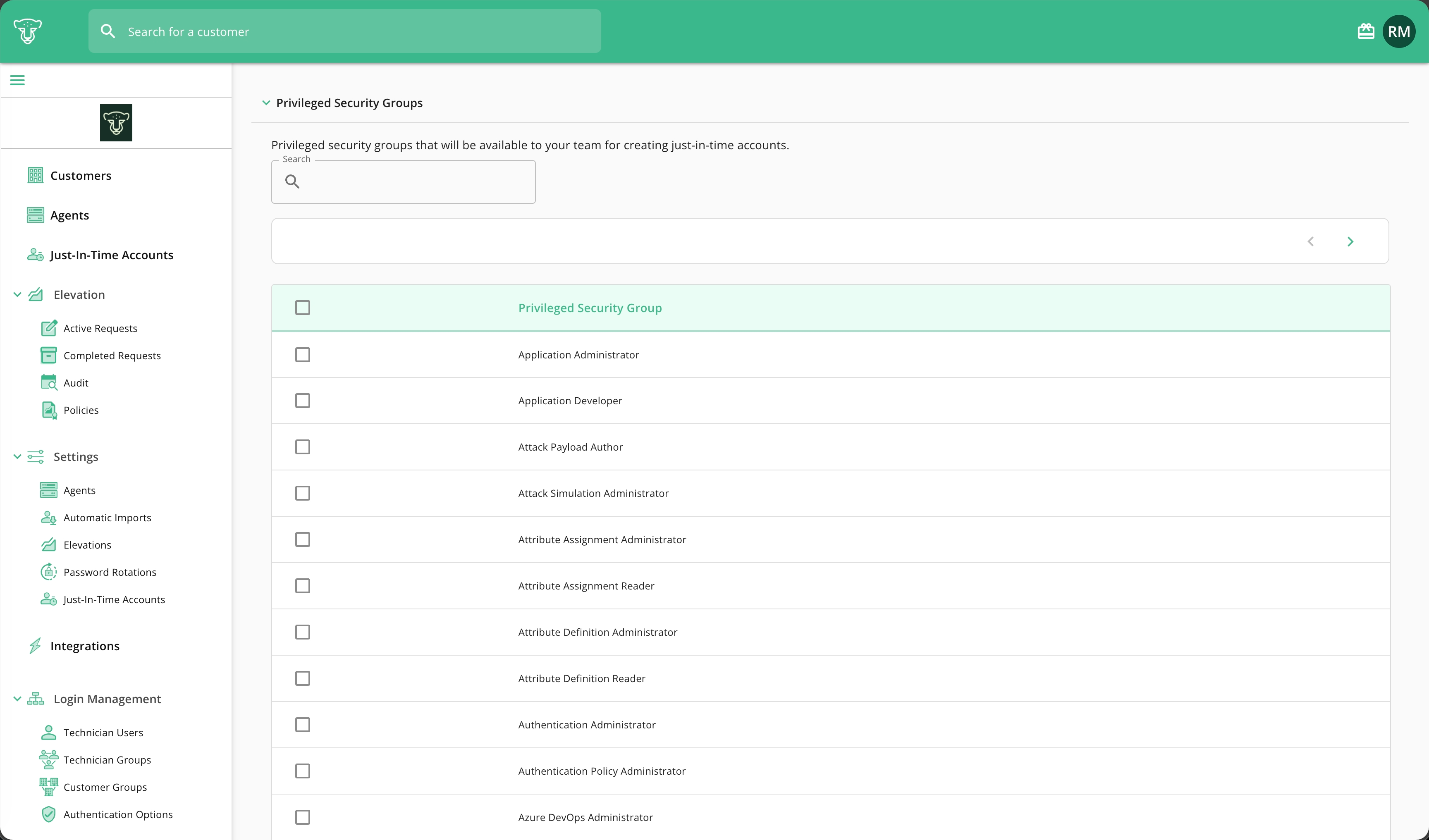
Select which privileged security groups or roles can be assigned when JIT accounts are created.
This setting controls the administrative permissions available to technicians.
Step 8: Configure Microsoft 365 Authentication (Microsoft 365 Policies Only)
Due to 2FA requirements on privileged Microsoft 365 accounts, our JIT accounts for the service have the option to use Temporary Access Pass instead of traditional Password Authentication. Using TAP instead of Password Authentication is highly recommended when using Burner JIT accounts in Microsoft 365.
Password Authentication
Select Password authentication to generate a temporary password during account creation.
The password:
Remains valid for the account duration
Automatically expires when the JIT account expires
Temporary Access Pass (TAP) - (Limited BETA Access)
Select Temporary Access Pass to generate a short-lived Microsoft Entra sign-in passcode.
TAP allows passwordless authentication and automatically expires with the JIT account.
NOTE: Your customer must have Entra P1 or higher level Subscription enabled in their Entra/M365 Tenant.
Enable the TAP Functionality in Entra
- Log into your Customers Entra Portal ( entra.microsoft.com ) with an account that has at least "Authentication Policy Administrator" Entra role.
- Scroll/Find "Authentication Methods" on the left side and click

- Click on Temporary Access Pass
- If not enabled, Enable it on the first Tab
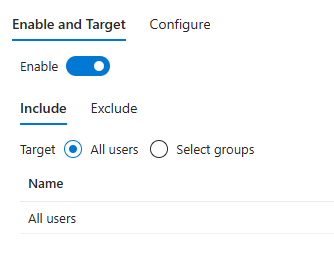
- Determine if you want this login method to be used for all users, or only a select list
Please review the Microsoft KB to determine what is best for your Customer. - Once Enabled, select the Configure Tab at the top of the section
- You can adjust the Minimum and Maximum time, if One Time is ENFORCED (we do NOT recommend enabling this), and the default length of the TAP password by clicking Edit and modifying these values.
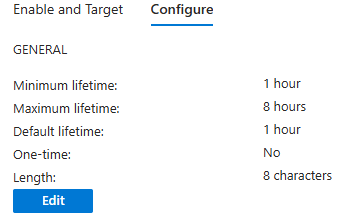
NOTE: CyberQP cannot over ride the maximum lifetime value set in Entra. If you set this to any value, and the duration of the Just in Time Account that was selected by your technician is GREATER than this value, it may fail to enable. We recommend you set the maximum time of the Policy to match the maximum time in Entra
If this occurs your technician will see this banner
NOTE: We do NOT recommend enforcing the One-Time Enforcement. If you do this it will require the Technician to setup another MFA method, which defeats the purpose of the Burner JIT with TAP configuration.
Adjust the Just in Time Maximum to be no more than the Maximum lifetime you choose in Entra.- NOTE: 1 Time Enforcement is per SESSION. If your technician closes the browser that they login with, they will have to disable the JIT, and start over (including creating the JIT, and setting the MFA)
TAP also has an additional toggle to set it as "One-time use" for additional security.
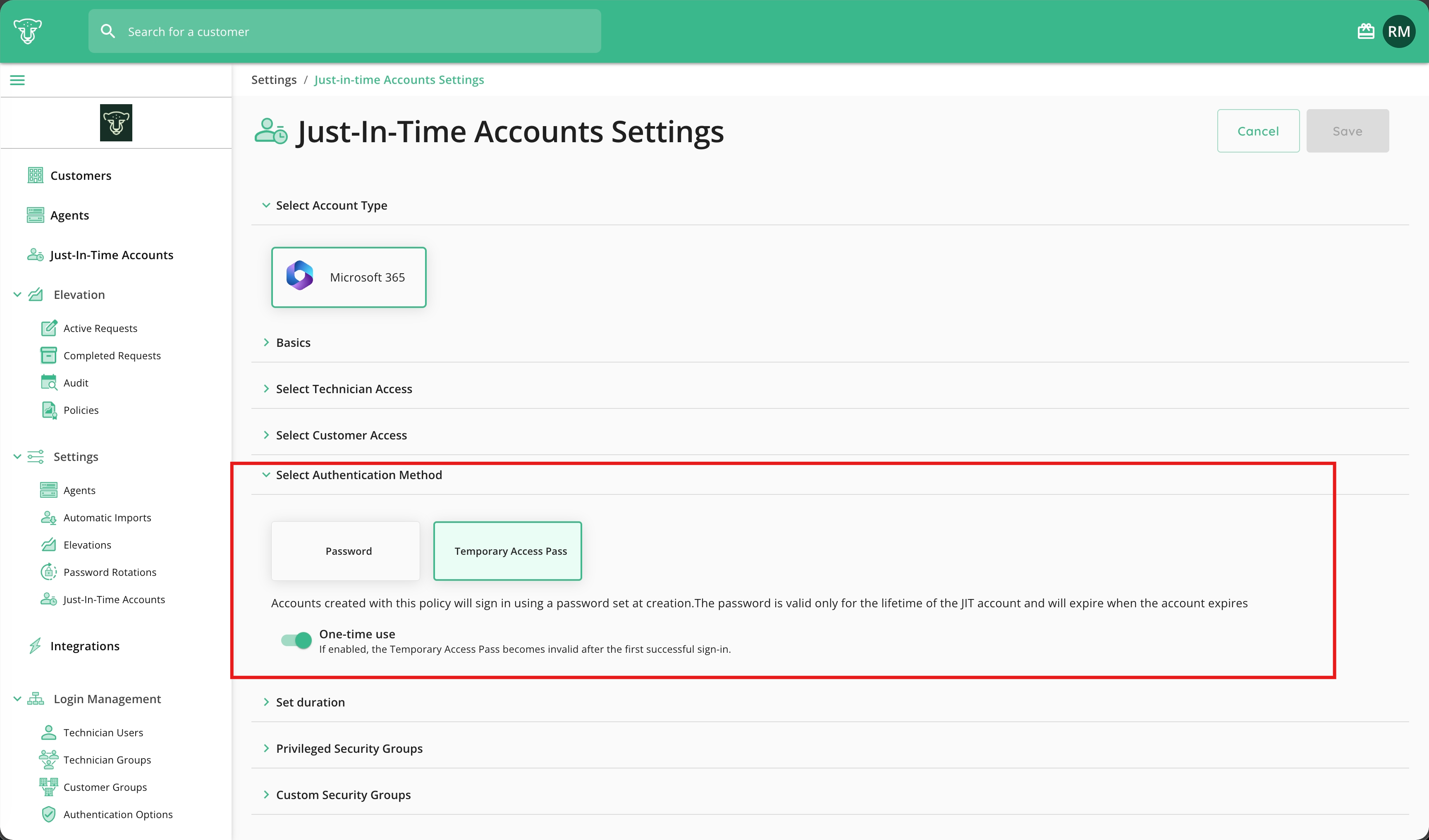
NOTE: the JIT Policy MUST MATCH the One Time option set in Entra. If this is enabled in Entra, it MUST be enabled in the Policy (otherwise the TAP is invalid). If this is Disabled in Entra, it MUST be disabled in the Policy (otherwise the Technician is prompted to setup MFA at the time of login which defeats the purpose of using TAP)
Step 8: Save and Apply the Policy
After configuring all settings:
Review technician scope
Confirm customer scope
Verify duration and privilege configuration
Confirm Burner Mode selection
Save the policy
Once saved, technicians can begin creating JIT accounts using the configured policy settings.
Additional Notes
JIT account expiration is enforced automatically.
Policies apply all configured settings during account creation.
Separate policies can be created for different technician teams or privilege levels.