How to Change UAC Level from the Quickpass Dashboard
Last updated: July 12, 2026
This article explains how technicians can modify the User Account Control (UAC) level for devices that have the Quickpass Agent installed, directly from the Quickpass Dashboard.
UAC changes can be applied to:
A single machine
Multiple machines at the same time (bulk edit)
✅ Prerequisites
Device must have the Quickpass Agent installed
Device must appear under the Agents section
Device must be Online for the change to apply immediately
You must have appropriate dashboard permissions (Primary or Super)
🧭 Step 1: Navigate to Agents
Log in to the Quickpass Dashboard.
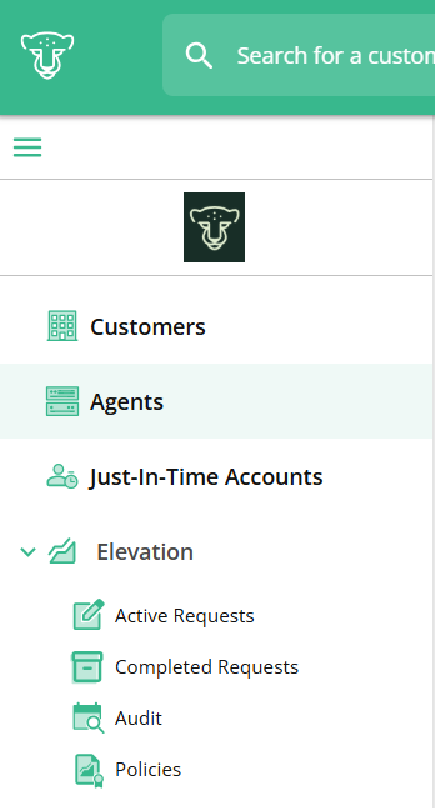
Click Agents in the left-hand navigation menu.
🖥️ Editing a Single Machine
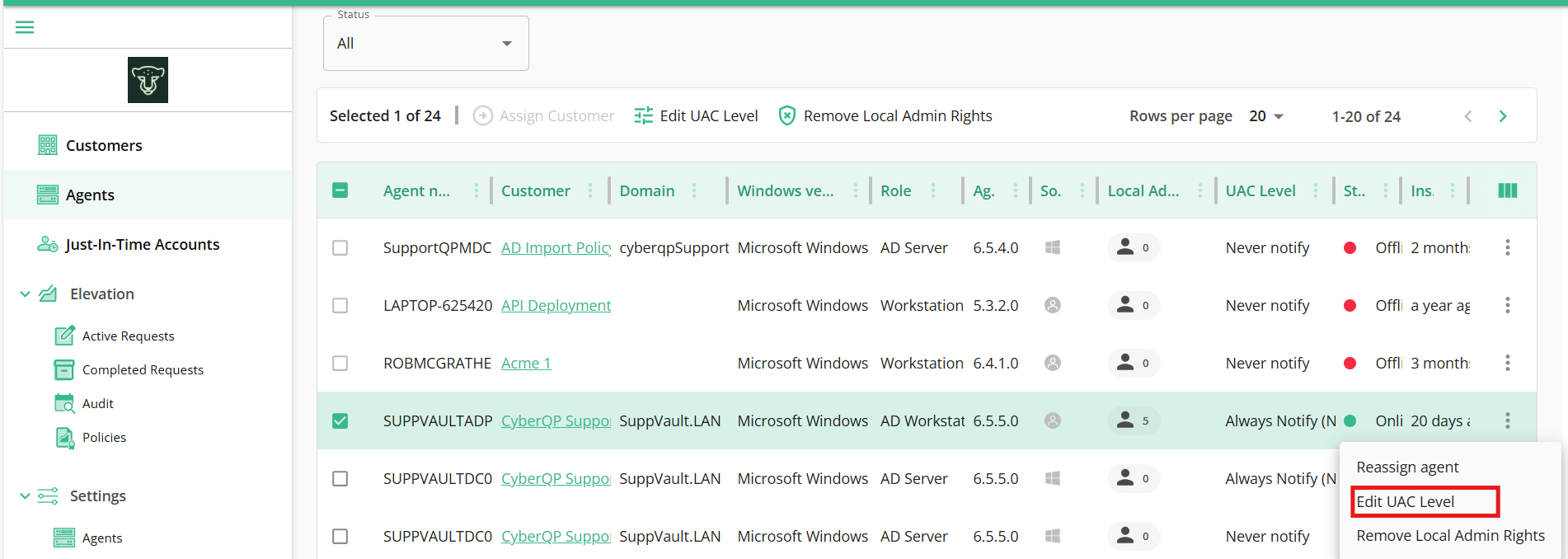
Option A — Using the 3-Dot Menu
Locate the desired machine.
Click the three-dot (⋮) menu on the right side of the row.
Select Edit UAC Level.
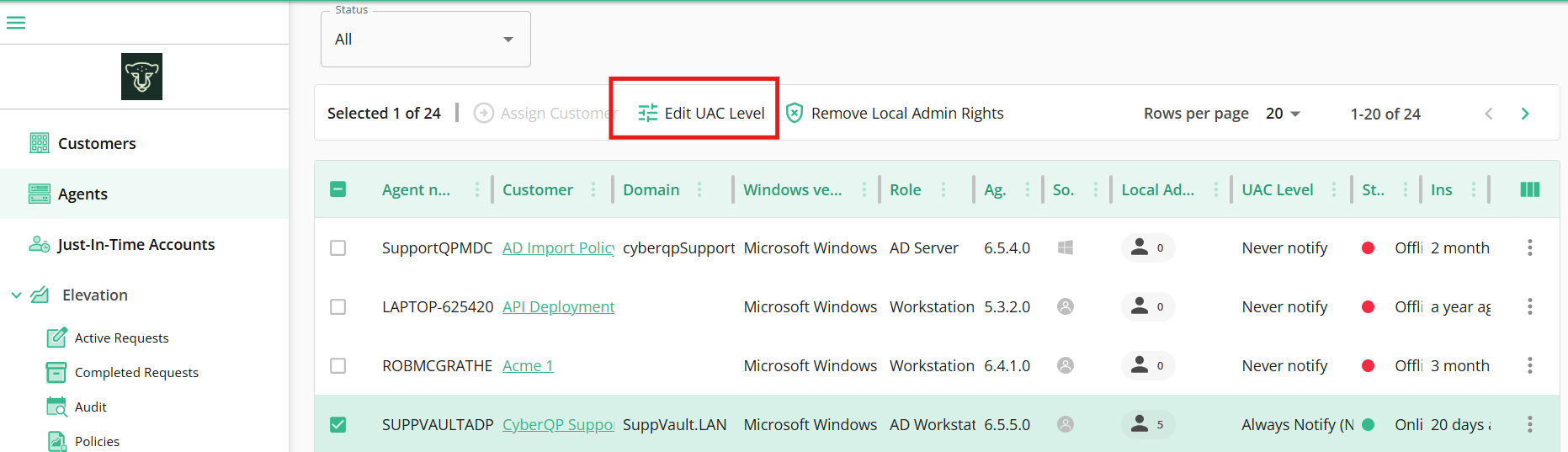
Option B — Using the Top Action Bar
Check the box beside the machine.
At the top of the list, click Edit UAC Level.
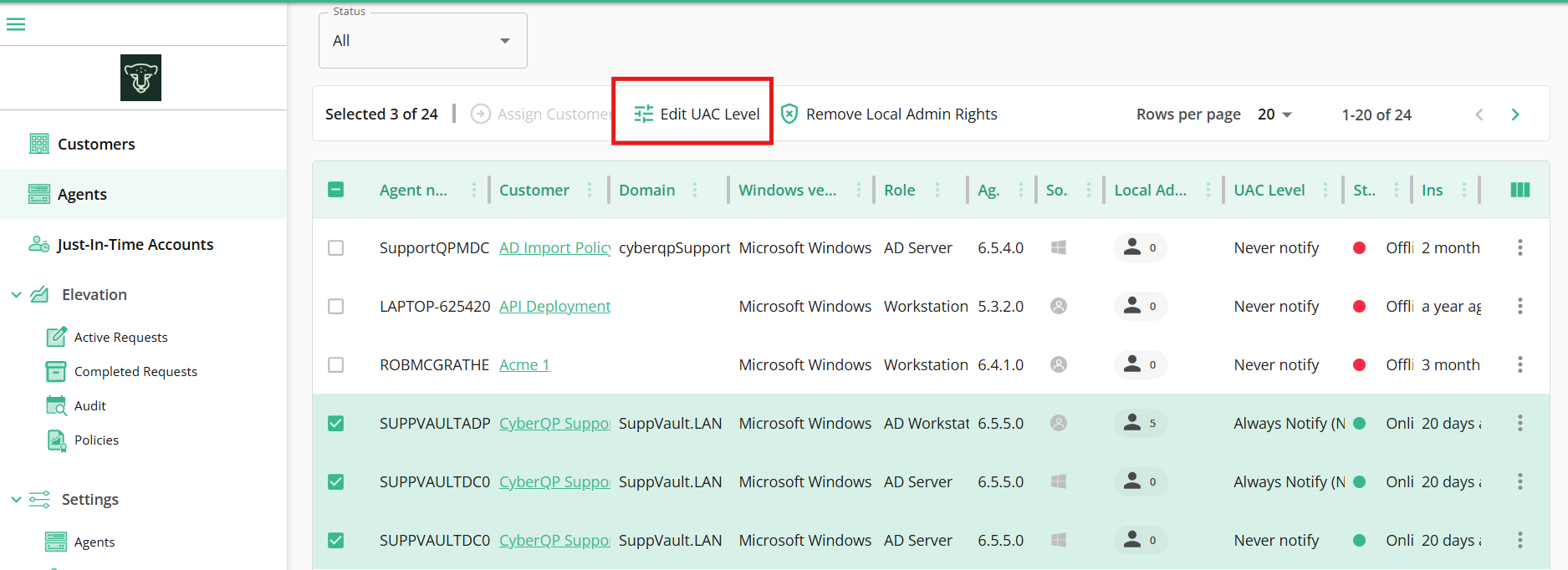
🖥️🖥️ Editing Multiple Machines (Bulk UAC Change)
Technicians can update multiple machines at once.
To edit multiple devices:
Check the boxes beside each machine you want to modify.
At the top of the Agents list, click Edit UAC Level.
When editing multiple devices:
-
The modal will display Total Agents selected
⚙️ Step 3: Select the UAC Level
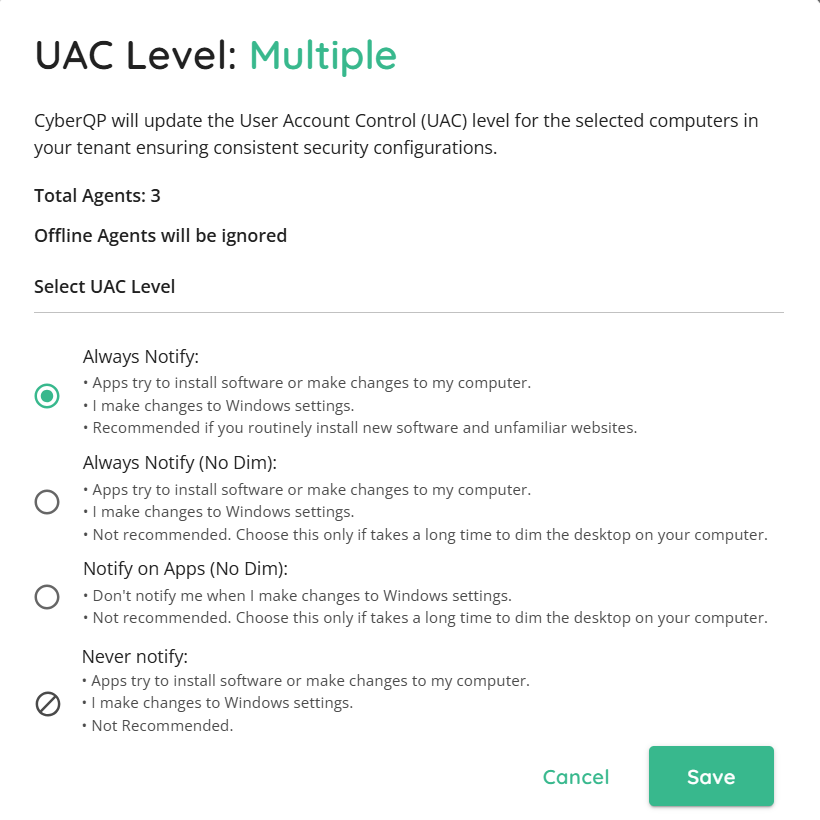
You will see the following UAC options:
Always Notify
Always Notify (No Dim)
Notify on Apps (No Dim)
Never Notify
💾 Step 4: Save the Change
Select the desired UAC level.
Click Save.
The Quickpass Agent will apply the configuration to:
The selected single machine
orAll selected online machines (bulk)
🔎 Verification
After saving:
The UAC Level column in the Agents list will reflect the updated setting.
Devices must be Online for immediate enforcement.
⚠️ Important Notes
Bulk changes do not queue for offline machines.
Changes may take a few moments to reflect depending on agent communication.
Always verify device status before performing bulk updates.